By Lee Sykes
December 2005
Once you have bought your own domain name (ie. www.dnncreative.com) and your hosting package, you need to point your domain name from your domain registrar to your hosting providers’ servers in order to access your web page.
It's important that you do this as soon as possible as it can take 24 to 48 hours for the new settings to take effect across the internet.
For this tutorial we have purchased our domain name using 1&1.com and we are going to point the domain to the
www.serverintellect.com servers.
Note: each domain registrar will adjust the nameserver settings in a slightly different way, but the basic principles that are demonstrated here will apply for all domain registrars.
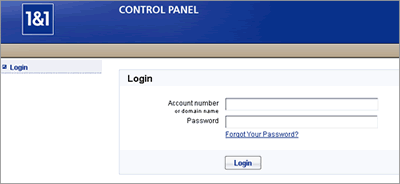
- Login in to your Domain Name account:
- Select the package you require:
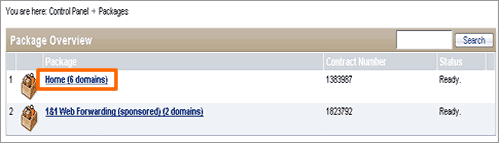
- Under Package Features, select Domains
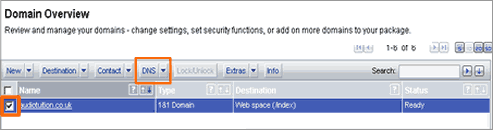
- Tick the box next to the Domain Name you wish to adjust
- Click on DNS to adjust the Nameserver settings
- Next to Name Server Settings, click on Edit
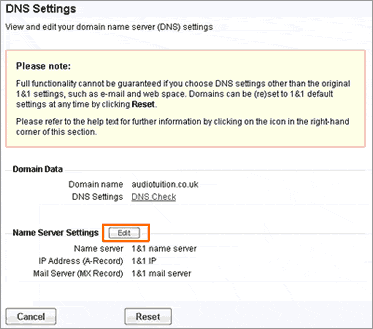
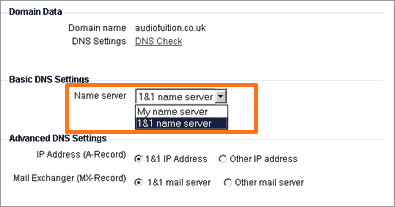
- In the Basic DNS Settings
- Click on the 1&1 name server drop down box and select My name server
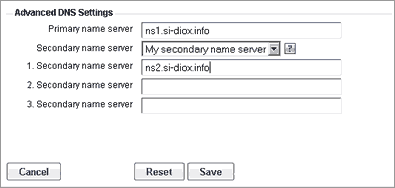
- Under Advanced DNS Settings enter the primary and secondary name servers. (These details are provided by your hosting provider)
- In the case of the package we purchased from Server Intellect:
- ns1.si-diox.info
- ns2.si-diox.info
You will receive a confirmation message. In most cases it will take 24 hours for these settings to take effect.